Elementor 101 · Lesson 03
A tour of the Elementor editor
Top bar, Elements panel, canvas, Structure and responsive modes — and the shortcuts that save hours.
Written for Elementor 4.3.3 · Elementor Pro 4.3.1 · Updated October 2026
01Open the editor
Create a page under Pages › Add Page, give it a title, and click Edit with Elementor. You can also hover over any existing page in the list and click the same link.
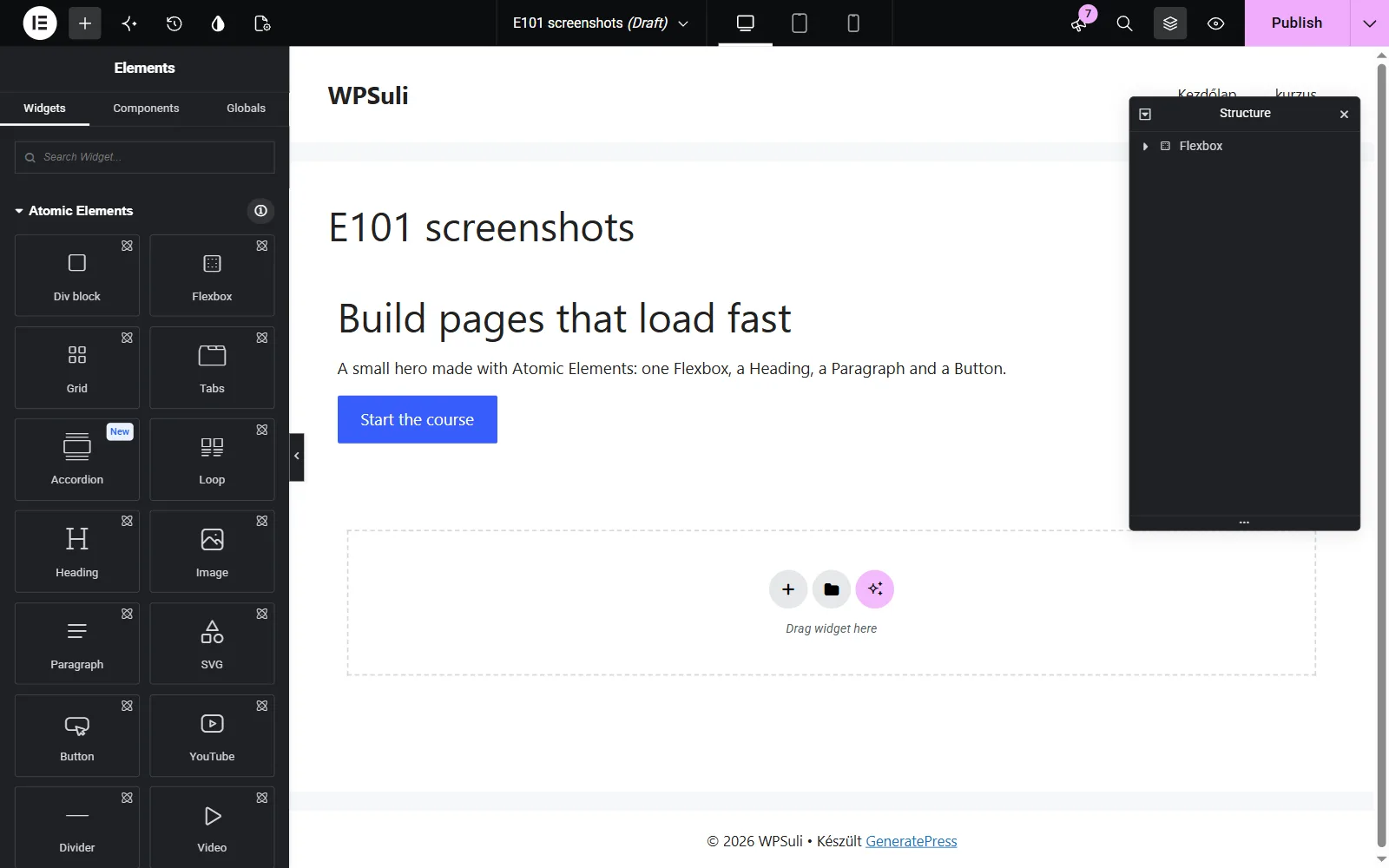
The editor loads in four areas. Learn them once, and every other lesson will make sense.
 1
2
3
4
1
2
3
4
02The top bar
The top bar (1) holds everything that isn't about the element you have selected. From left to right:
- Elementor menu (the logo): Site Settings, Theme Builder, User Preferences, Keyboard Shortcuts and Exit to WordPress.
- Add Element (the + icon) opens the Elements panel.
- Angie, Elementor's AI agent, then History.
- Design System: your Variables, Classes and Default Styles (lesson 07).
- Page Settings: title, status, page layout, featured image.
- In the middle: the page title and the device switcher (desktop, tablet, mobile and any custom breakpoints).
- On the right: Finder, Structure, Preview Changes and Publish.
03The panel: Elements, General, Style and Interactions
The left panel (2) changes with what you are doing. With nothing selected, it shows Elements in three tabs: Widgets, Components and Globals. Under Widgets, Atomic Elements are at the top and classic widgets are below them. Type in the search box instead of scrolling.
Select an Atomic Element on the canvas, and the panel switches to its settings in three tabs:
- General holds the content: text, link, HTML tag, ID, attributes and display conditions.
- Style holds the look: classes, then layout, spacing, size, position, typography, background, border, effects and custom CSS. It's the same Style tab for every Atomic Element. Lesson 06 covers it in depth.
- Interactions holds motion, such as a fade-in on page load (lesson 10).
04Canvas, inline editing and Structure
The canvas (3) is your real page, rendered live. Click any element to select it. Hover over it to see the floating action bar with duplicate, delete and dynamic content options.
- Inline editing. Double-click an Atomic Heading or Paragraph to type directly on the canvas. A small toolbar appears for bold, italic and links.
- Drag to reorder. Drag elements by their handle. A blue line shows where they'll land.
- Right-click any element for copy, paste, paste style, save as template and more.
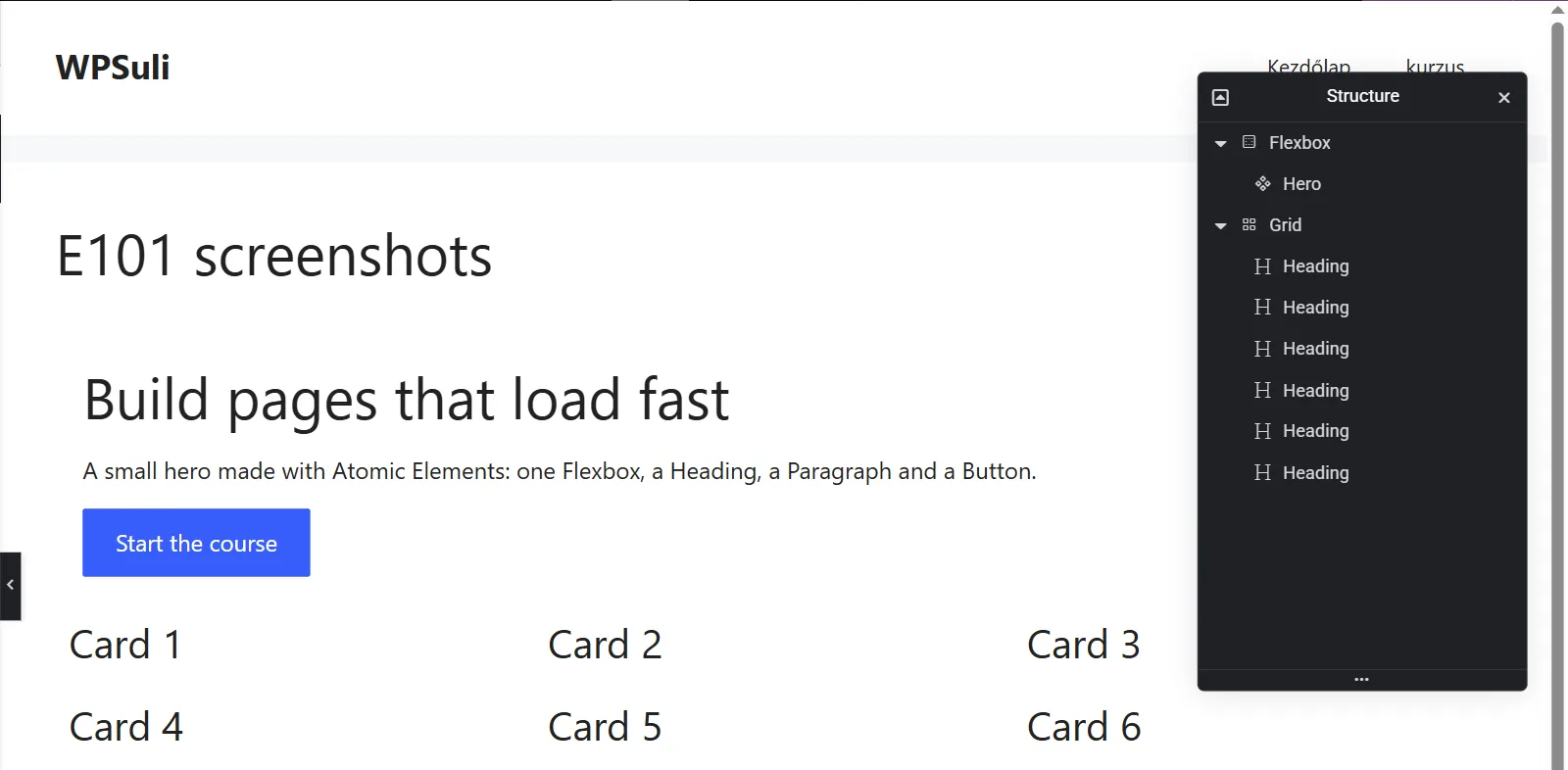
The Structure panel (4) shows the page as a tree. Once you nest layouts inside layouts, it's the easiest way to select the right box, rename elements, or drag something into a parent that's hard to hit on the canvas.
05Responsive mode, History and Publish
Switch devices in the top bar, and the canvas resizes. Any style you change now applies to that device and the smaller ones, unless they have their own value (lesson 06).
History keeps every action from this session, plus saved revisions. If you break something, step back instead of rebuilding it.
Publish makes the page live. The arrow next to it (Save Options) lets you save as a draft or save the page as a template.
| Shortcut (Win / Mac) | Does |
|---|---|
| Ctrl / ⌘ + E | Finder — jump to any page, template or setting |
| Ctrl / ⌘ + I | Toggle Structure |
| Ctrl / ⌘ + Z | Undo |
| Ctrl / ⌘ + S | Save |
| Ctrl / ⌘ + ? | Show all shortcuts |
06Common mistakes
- Styling on mobile by accident. If a change "doesn't show" on desktop, check the device switcher. You may be editing tablet or mobile values.
- Hunting on the canvas for a nested box. Use Structure. Clicking over and over just selects the wrong parent.
- Closing the tab without publishing. Drafts autosave, but visitors only see what you publish.
✓Quick quiz
Three questions to check the essentials. Get them all right to complete the lesson.